Shopify Share Image Not Updating After a Product Change? How to Regenerate One Image or Many
You changed a product's photos, dropped its price or saved a new look in Settings, and the shared link still shows the old picture. That is expected: Social Media Share Image (by Yuhu Apps) renders a share image once and keeps serving it until you tell it to render again. Existing share images do not re-render on their own when a product's photos, price or title change, when you save Settings, or when a scheduled campaign starts or ends. This guide shows what does update automatically, and how to use Regenerate for a single image and the dashboard's bulk actions for many at once.
Don't have Yuhu yet? Install it from the Shopify App Store →
1 Know what updates on its own and what doesn't
With Automation on, the app creates an image for new products and collections as soon as Shopify reports them. New pages and blog articles are picked up by an hourly sync. Pages are included only if the Change social share images for pages? switch is on.
Everything that already has a share image keeps it unchanged. These changes need a manual Regenerate:
• new, removed or reordered product photos
• a new title or price, including anything shown through {title}, {price}, {compare_at_price} or {discount}
• a design change in Settings, such as a preset, text overlay, badge or logo
• a scheduled campaign starting or ending
2 Regenerate a single image after editing one product
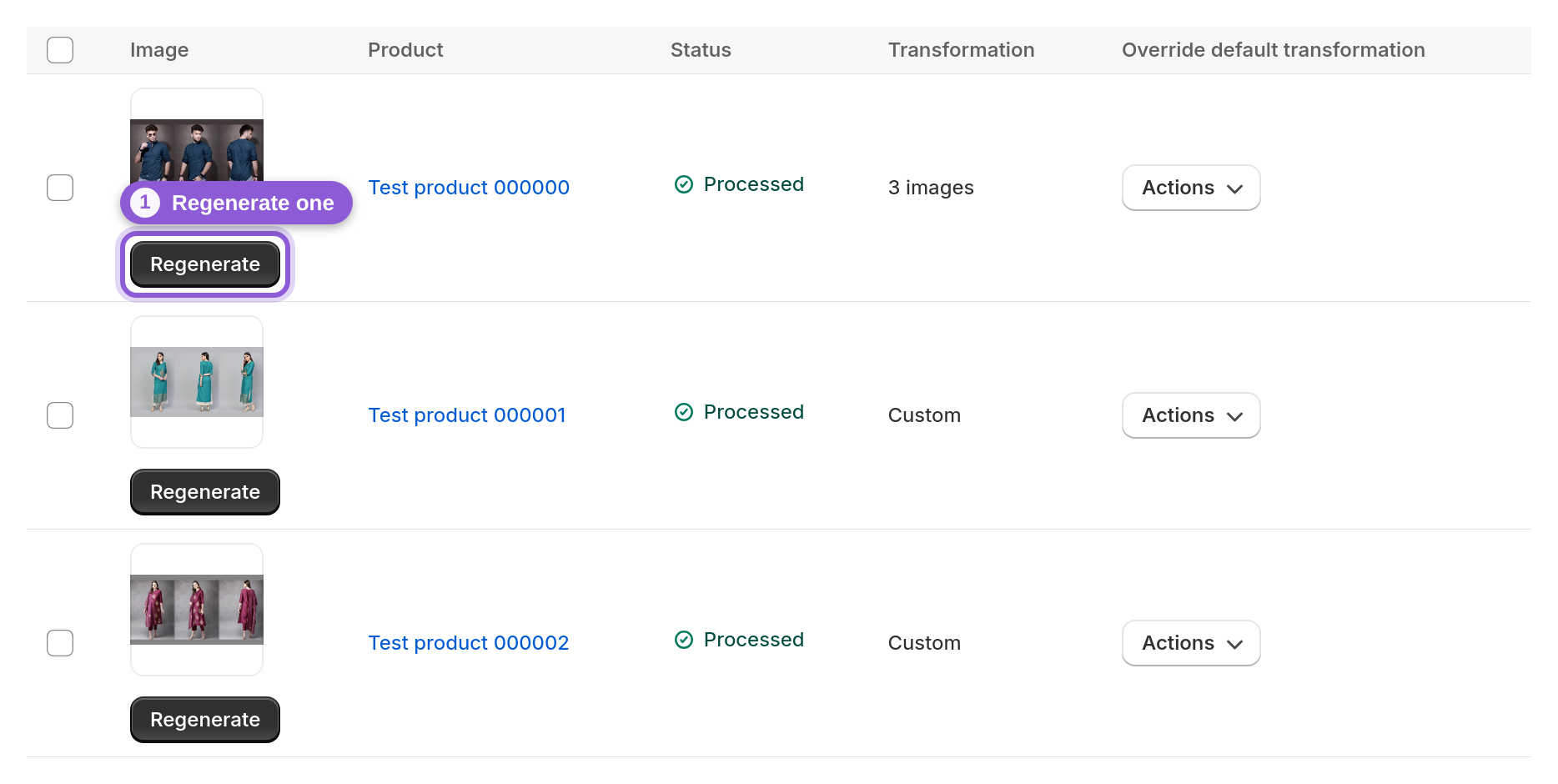
Open the app's dashboard, which lists all of your share images. Find the product, collection, page or article you edited and use its Regenerate button, under the image thumbnail in that row (shown for products and collections; for a page or article, tick its row checkbox and use Regenerate in the bulk actions toolbar). The app renders a fresh image from the item's current photos, title and price, using your current Settings.
This is the quickest fix after one product edit, such as a new main photo or a price change shown in a {price} overlay or a {discount} badge.
3 Bulk-regenerate after changing your design
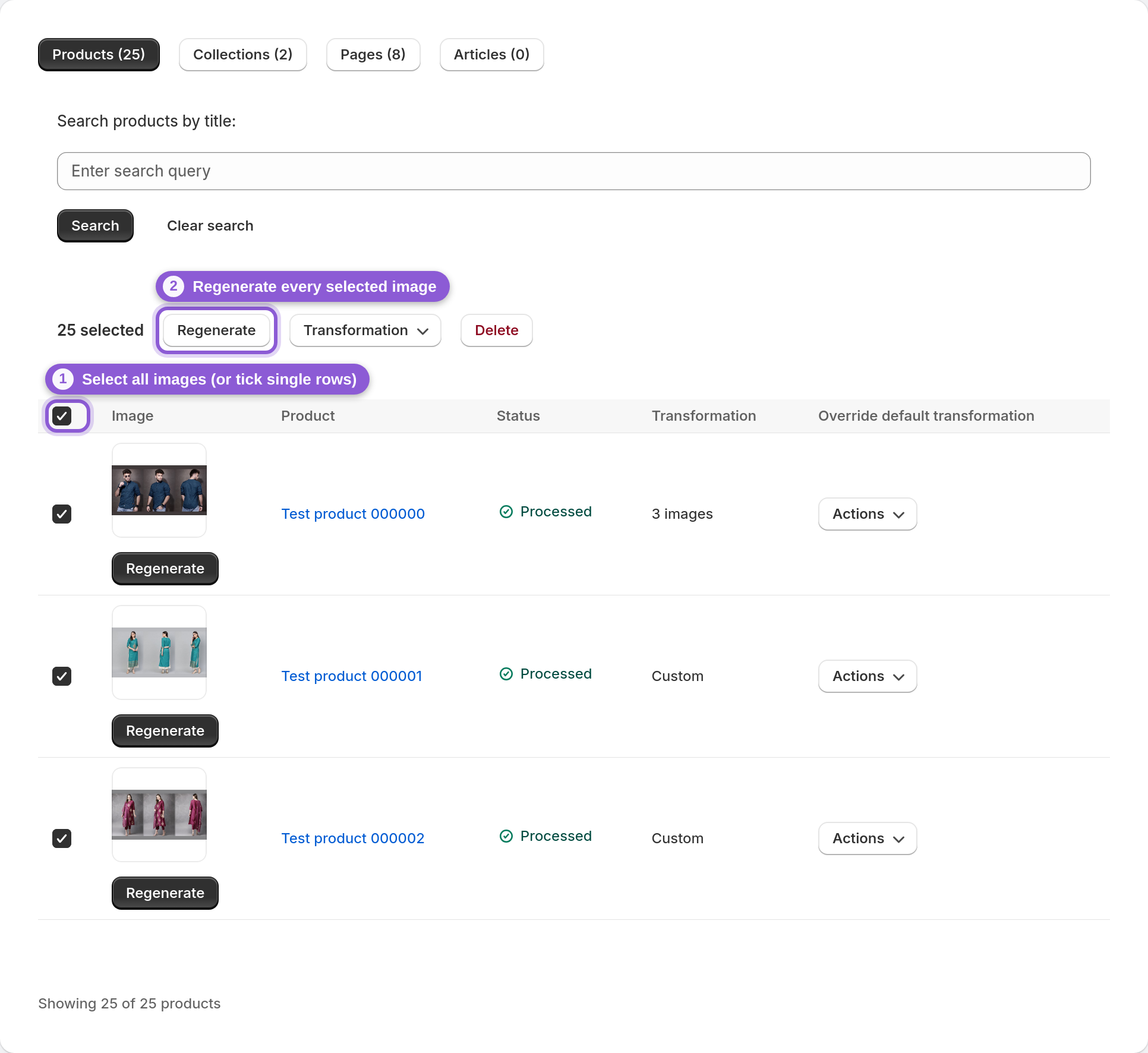
A design saved in Settings applies to images rendered from then on. It does not repaint the images you already have. To bring the whole catalog in line, select the images on the dashboard (tick each row's checkbox, or the checkbox in the table header to select them all) and choose Regenerate from the bulk actions toolbar. All selected images re-render in one action.
Tip: check the look first with the live preview and exact render in Settings, then bulk-regenerate once. Your plan is based on product count, so regenerating does not move you to a different plan.
4 Switch many images to another layout, or delete them
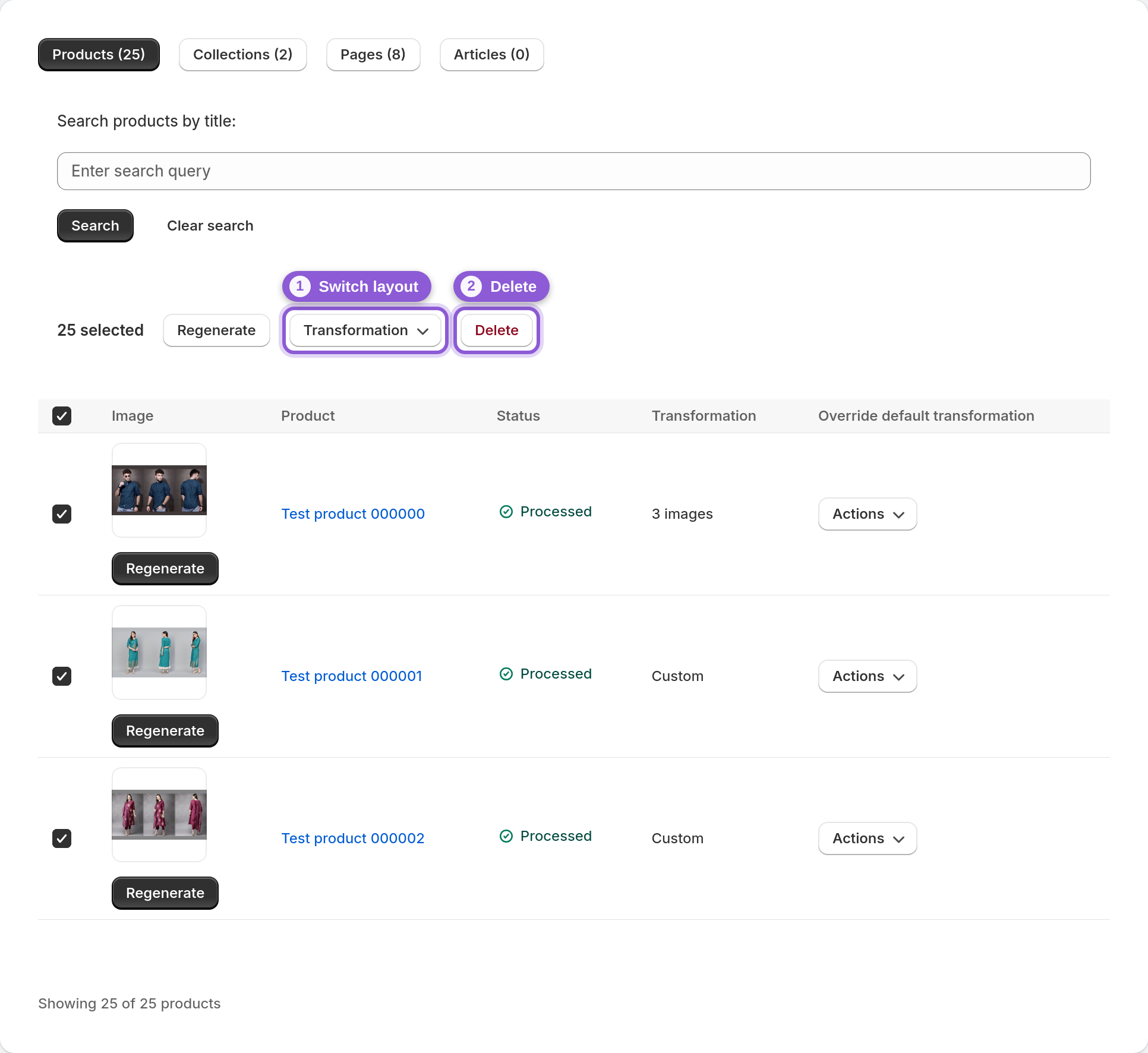
The same bulk toolbar can switch selected images to another layout, for example from a single photo to 3 photos side by side, without changing your store-wide default. It can also delete selected images in one action.
To change the default layout for future images, set it in Settings. The Preview transformations wizard shows each option on a real product. Then bulk-regenerate or bulk-switch the images you already have.
5 Regenerate when a scheduled campaign starts and ends
A Scheduled campaign look swaps your branding to the chosen preset on the start date and restores your normal branding after the end date. The app checks hourly in your shop's timezone.
The swap changes the settings, not the images already rendered. To show the campaign look on existing share images, run a bulk regenerate once the campaign has started. Run it again after the end date so your images return to the normal design.
6 Update a custom image separately
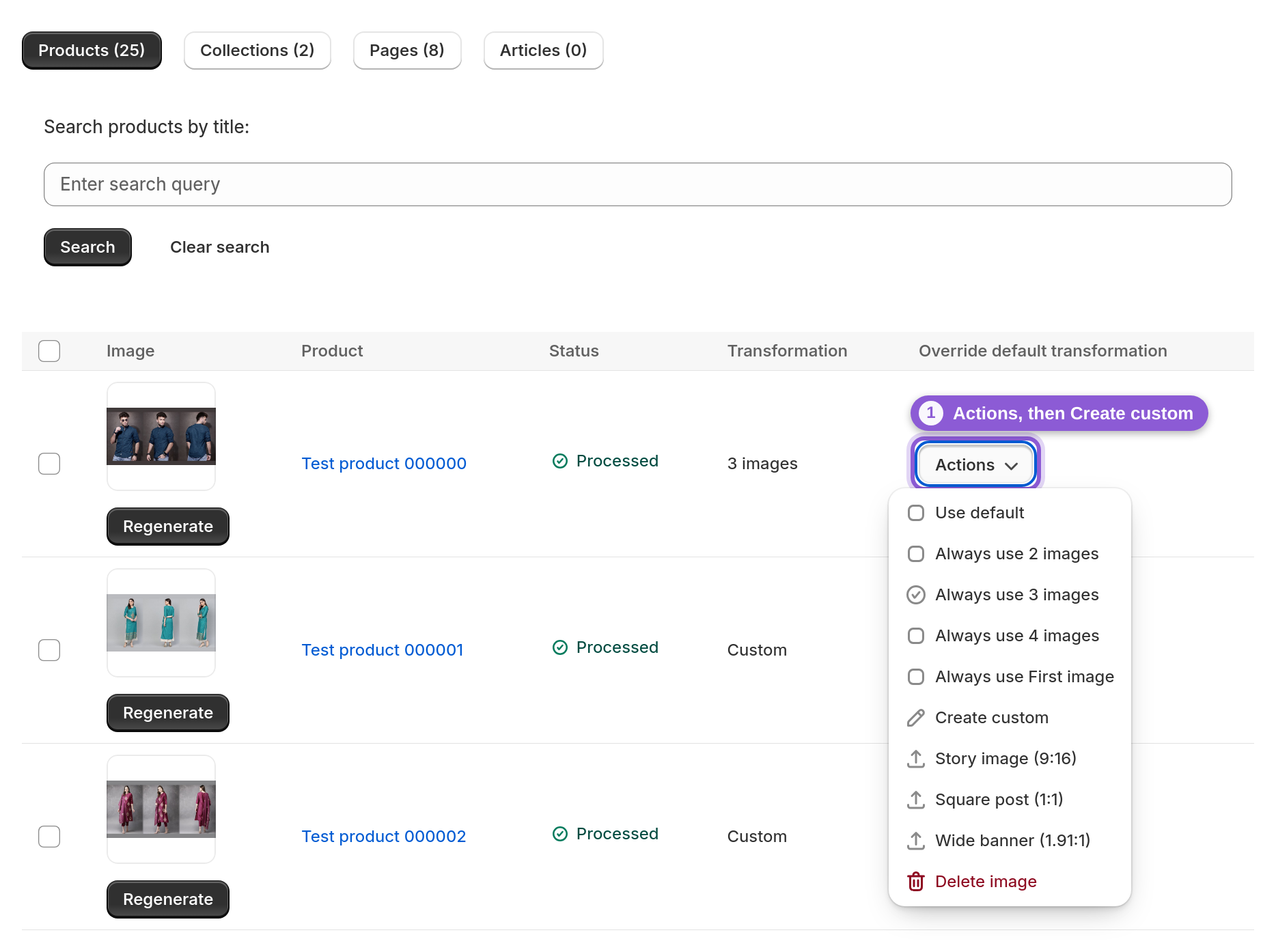
An item with its own override (Create custom) uses the photos or uploaded image you chose, not the global design. To change it, open Create custom for that item again, adjust it, preview and save. To put it back on the global design, choose Use default. Other items are not affected either way.
7 Check the live result, and allow for platform caching
Paste the page URL into the free Social Share Preview Checker at yuhuapps.com/tools/social-preview. It reads the live Open Graph and Twitter tags and shows preview cards for Facebook, X, WhatsApp, LinkedIn, Discord, Slack, iMessage, Telegram and Reddit.
If the checker shows the new image but a chat still shows the old one, that is the platform's cache. The app cannot clear it. Links shared earlier keep the old card until the platform fetches the page again, so test with a link you haven't shared yet.
Frequently asked questions
Why didn't my share image update after I changed the product photo or price?
The app does not re-render existing share images when a product's photos, price or title change. Open the dashboard and use Regenerate on that item, or select several and regenerate them in one bulk action. Only new products and collections get an image automatically.
Does saving new design settings update the share images I already have?
No. New settings apply to images rendered from then on. To apply a new preset, overlay, badge or logo to your existing images, select them on the dashboard and run a bulk regenerate.
Will my scheduled campaign change my share images automatically?
The campaign swaps your branding on the start date and restores it after the end date, checking hourly in your shop's timezone. It does not re-render images that already exist. Bulk-regenerate after the campaign starts, and again after it ends.
I regenerated the image, so why does Facebook or WhatsApp still show the old one?
Social platforms cache link previews per URL, and the app cannot clear that cache. A link shared earlier keeps the old card until the platform fetches the page again. Check the current tags with the free Social Share Preview Checker, or share a link you haven't shared before.
Does regenerating images cost extra?
Plans differ only by product count, and every plan includes all features, including Regenerate and bulk actions. A transformation is one generated share image, and an unchanged item is not re-billed.
Why isn't a new product getting a share image at all?
Check that Automation is on. Then check that your store has no more products than your plan allows: if it does, new image generation pauses, while existing images stay live. Also make sure the theme app embed is on. The Theme status page in the app shows whether it is.