How to Set Up a Shopify Social Share Image for Every Product and Page
When someone shares one of your store links on Facebook, WhatsApp, X/Twitter, Pinterest, LinkedIn, Discord, Slack, iMessage or Telegram, the platform pulls an og:image — the social share image — to build the link preview. Left to Shopify's defaults, that's often a bare product photo or nothing at all. Social Media Share Image (Yuhu) generates a branded social share image for your products, collections and blog articles (and store pages once you switch them on), so your links show a designed preview with your logo, text and (optionally) pricing. This guide walks through getting your share images live and looking right across the platforms your customers actually use.
Don't have Yuhu yet? Install it from the Shopify App Store →
1 Install the app and enable the theme app embed
Install Social Media Share Image from the Shopify App Store. The share tags are served by a theme app embed, so the one required setup step is enabling it: the dashboard gives you a one-click link straight into your theme editor — flip the toggle and save the theme. The app also edits your theme's layout/theme.liquid to hide the theme's own copies of these share tags, so they don't compete with the app's og:image. If the app goes away, the theme's tags show again, and you can undo the edit any time with Remove theme changes on the Theme status page. The app's Theme status page shows whether the embed is on and updates itself, so you always know whether the tags are live.
![Install the app and enable the theme app embed — s-button[target="_blank"] highlighted](/docs-assets/img/shopify-social-share-image/01-theme-embed.png?791b6648)
2 Pick your layout in the wizard
Next, choose the layout your share images will use. Open Preview transformations in the app's navigation: the three-step wizard picks one of your products and previews how 1–4 product photos look combined side by side, so you can decide between a clean single-photo look and a collage that shows more of the product at a glance. With smart photo selection on, the app picks each product's most colourful photos automatically and skips near-duplicate white-background shots.
3 Brand your share images in Settings
This is what turns a plain product photo into a designed preview. Add your logo (choose one of 9 positions, its size as a % of the image width, and its opacity), and add a text overlay with live tokens — {title}, {price}, {compare_at_price} and {discount} — plus an optional corner badge like "{discount}% OFF" that hides itself when there's no discount. In a hurry? One-click style presets (Clean minimal, Title & price, On sale, Black Friday, Elegant, New arrival) fill the settings for you, and a scheduled campaign can swap in a preset between a start and end date (checked hourly in your shop's timezone) — handy for sale periods. Existing images aren't re-rendered when a campaign starts or ends, so run a bulk Regenerate to apply the look.
4 Cover pages, blog posts and Pinterest (optional)
Products, collections and blog articles get share images out of the box. In Settings, the Change social share images for pages? switch extends coverage to your store pages too (a fallback image URL in Settings covers pages and articles that have no photos), and enable Pinterest support — a tall 1000×1500 pin image generated alongside the square share image and saved to a product/collection metafield. The app adds no Pinterest Save button or pin tag to your storefront, so Pinterest link previews still use the square og:image.
5 Check your links with the Share Preview Checker
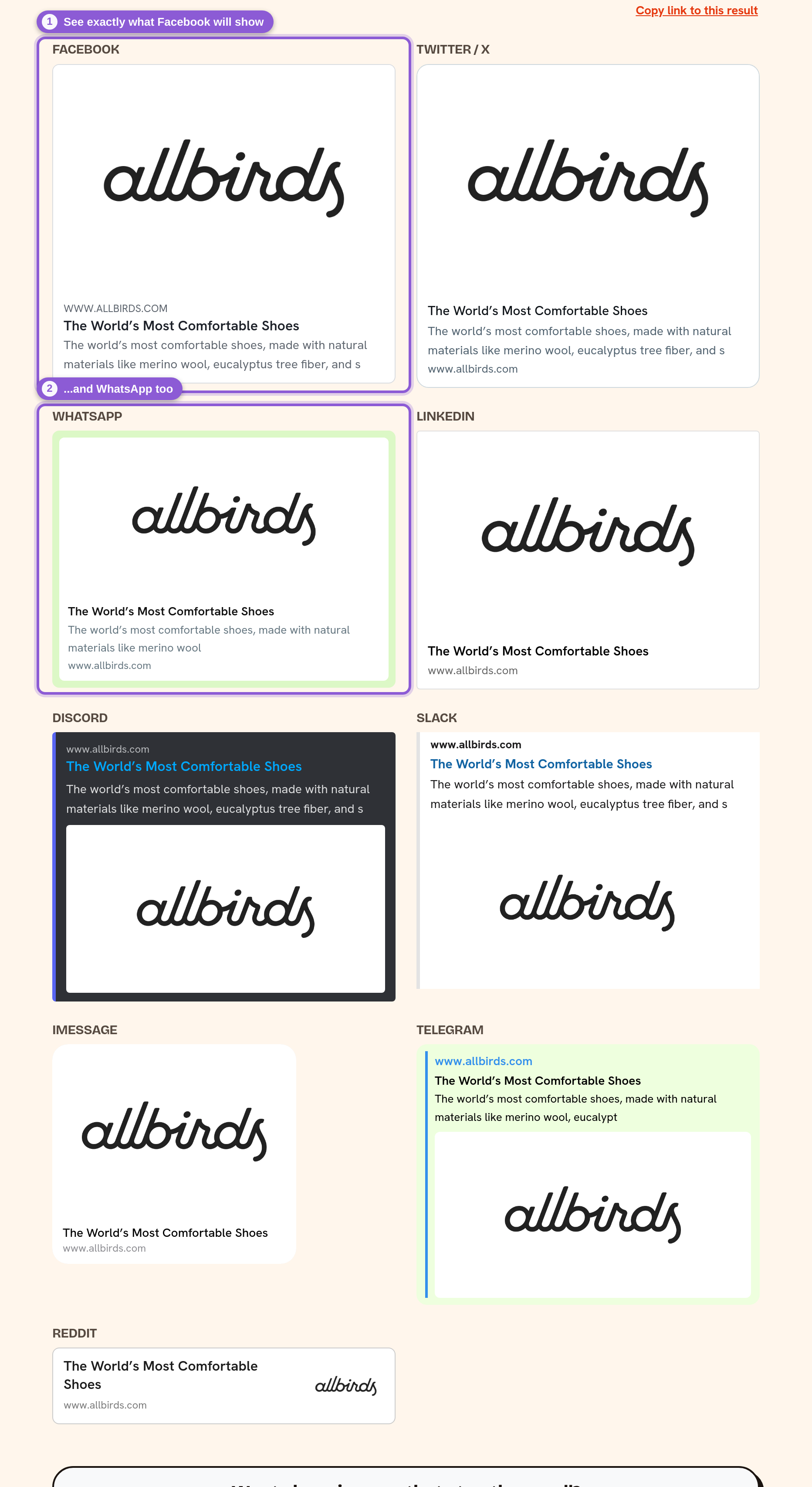
To see the result the way each platform will, paste any store URL into the app's free Share Preview Checker (no signup needed, at yuhuapps.com/tools/social-preview). It fetches your page's real Open Graph tags and renders preview cards for Facebook, X/Twitter, WhatsApp, LinkedIn, Discord, Slack, iMessage, Telegram and Reddit — and flags issues, like a missing og:image. Keep in mind platforms cache previews per URL, so after a change an already-shared link can show the old card until the platform re-scrapes it.
6 Regenerate images after products change
With Automation on, new products and collections get a share image automatically, and new pages and blog articles are picked up by an hourly sync. Existing images are not re-rendered when a product's photos, price or title change. To refresh them, use Regenerate on a single image, or select images on the dashboard and regenerate them (or switch them to another layout) in one action. Changing Settings doesn't update existing images either, so run a bulk Regenerate after you change the look.
Frequently asked questions
What is a social share image on Shopify?
A social share image is the preview picture (technically the og:image, part of the Open Graph protocol) that platforms like Facebook, WhatsApp and X display when someone shares a link to your store. The app generates a branded 1200×1200 version for your products, collections and blog articles, and for store pages once you turn on the pages switch.
Why does my Shopify link preview show the wrong image or no image?
Common causes: the page serves no dedicated og:image, two competing og:image tags (a theme snippet plus another app), or the platform is showing a cached preview from before your change. The app generates a proper og:image per page and disables competing theme snippets; for stale previews, re-scrape the URL with the platform's debugger or share a fresh link.
Does this app add social share buttons to my store?
No. It's different from social-share-button apps — it doesn't add sharing buttons to your storefront. Instead, it generates the preview image itself that appears when a link is shared, so the link looks designed and branded wherever it's posted.
Will the share image update when I change a product?
Not automatically. New items get a share image on their own, but when you change an existing product's photos, price or title, use Regenerate on that image or bulk-regenerate from the dashboard.
Which platforms does the share image work on?
The app emits standard Open Graph and Twitter-card tags, so previews work across Facebook, X/Twitter, WhatsApp, LinkedIn, Discord, Slack, iMessage, Telegram and Reddit. Pinterest reads the same og:image. The optional tall 1000×1500 pin image is only saved to a product/collection metafield; the app adds no Pinterest Save button or pin tag.
Is there a free plan?
There is no free plan for new installs, but every plan starts with a free 7-day trial, so you can set up and test your share images before paying anything. Plans are sized by how many products your store has — see the pricing page for the current tiers.