Shopify Duplicate og:image Tags: How the App Handles Your Theme's Tags (and How to Undo It)
When a link to your store is shared, platforms such as Facebook, WhatsApp, X and LinkedIn read the page's og:image tag to pick the preview picture. If your page carries two sets of share tags, one from your theme and one from an app, they compete, and the platform may show the wrong image. Social Media Share Image (by Yuhu Apps) prevents this by editing your theme's layout/theme.liquid to hide the theme's own copies of those tags. This guide explains exactly what that edit does, how it stays safe if the app goes away, and how to undo it with Remove theme changes.
Don't have Yuhu yet? Install it from the Shopify App Store →
1 Understand why duplicate og:image tags happen
Many Shopify themes output their own Open Graph tags, including og:image. Social Media Share Image serves its own share tags through a theme app embed that you switch on once in the theme editor. It writes og:image (with secure_url, type and size), og:title, og:description, og:url, og:type, og:site_name, og:price and the twitter:card, twitter:title, twitter:description and twitter:image tags.
If the theme's tags and the app's tags are both on the page, they compete, and a platform may pick up the theme's plain photo instead of your branded 1200×1200 share image.
2 See what the app changes in your theme
To stop the two sets competing, the app edits layout/theme.liquid to hide your theme's copies of those share tags. It hides tags only: it does not change your theme's design, and you don't need to write any code. Your part is just turning on the app embed.
To find where a particular theme outputs its tags, this theme-edit step may ask Claude (an AI model). That is the only place AI is involved. It is never used to create image content, and the share images themselves are made with ordinary image compositing.
3 Know how the 24-hour lease protects your store
The hiding is tied to a 24-hour lease. The theme's tags stay hidden only while the lease is active.
If the app goes away, the lease is no longer kept active and your theme's own tags show again. Your pages are therefore not left without share tags for long once the app stops serving its own: at most until the lease runs out, within 24 hours. To avoid even that gap, use Remove theme changes before you uninstall.
4 Check which share tags your live pages carry
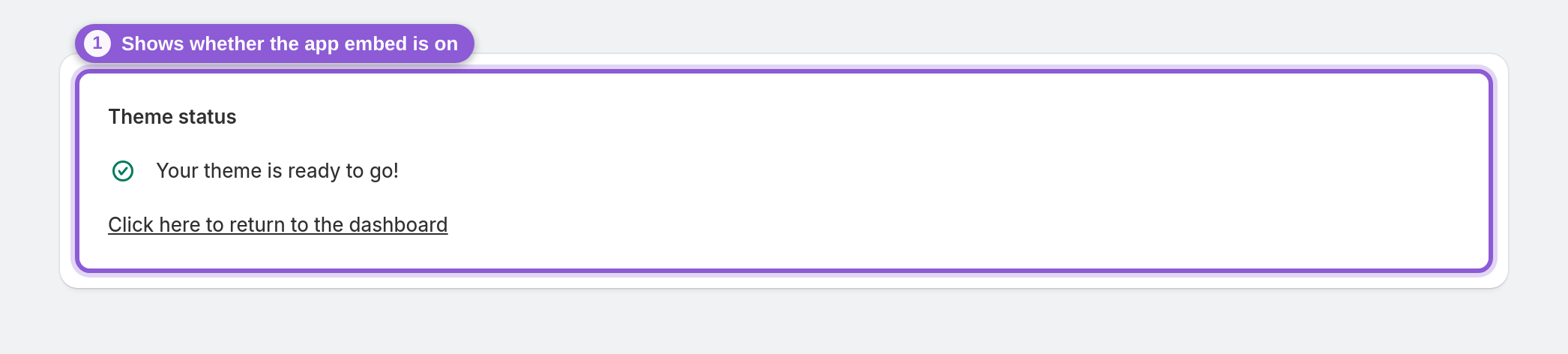
Open the app's Theme status page from the app's navigation menu. It shows whether the app embed is on, and it updates itself.
To see the tags a page actually serves, paste its URL into the free Social Share Preview Checker at yuhuapps.com/tools/social-preview. It needs no signup, reads the page's live Open Graph and Twitter tags, grades them, flags problems such as a missing og:image, and renders preview cards for 9 platforms. Developers can also view the page source and search for og:image.
5 Undo the edit with Remove theme changes
To revert the layout/theme.liquid edit, go to Theme status in the app and use Remove theme changes. This brings your theme's own share tags back.
If the app embed is still switched on afterwards, the page will carry both the theme's tags and the app's tags again, so duplicates can return. To stop the app's tags as well, switch off the app embed in the theme editor (Remove theme changes only reverts the layout edit; it does not switch off the app embed).
6 Clean up before uninstalling
For a tidy uninstall:
• On Theme status, use Remove theme changes.
• In the theme editor, switch off the Social Media Share Image app embed.
• Then uninstall the app.
If you skip the first step, the 24-hour lease means the theme's tags show again once it runs out after the app is gone (within 24 hours). Links that were shared earlier may keep their old preview card until each platform fetches the page again. The app cannot clear a platform's cached preview.
Frequently asked questions
Does Social Media Share Image edit my theme code?
Yes. Besides the app embed you switch on in the theme editor, the app edits layout/theme.liquid to hide your theme's own copies of the share tags so they don't compete with the app's. You don't have to write any code, and you can undo the edit at any time with Remove theme changes on the Theme status page.
How do I remove the app's theme changes?
Open Theme status in the app and use Remove theme changes. That reverts the layout/theme.liquid edit, and your theme's own share tags show again. To stop the app's tags too, switch off its app embed in the theme editor.
What happens to my og:image tags if I uninstall without removing the changes?
The theme's tags are hidden only while a 24-hour lease is active. If the app goes away, the lease is no longer renewed, and your theme's own tags show again once it runs out (within 24 hours). For a clean exit, it's still best to use Remove theme changes and switch off the app embed before you uninstall.
Why are there two og:image tags on my Shopify page?
Usually your theme outputs its own og:image and an app adds another. Social Media Share Image hides the theme's copies while its edit is in place. If you see both, check Theme status, and confirm whether Remove theme changes has been used while the app embed is still on. The free Social Share Preview Checker shows the live tags a page returns.
Does the app use AI to change my theme?
Only in one narrow place. To find where a theme outputs its share tags, the theme-edit step may ask Claude. AI is never used for image content: share images are made with deterministic image compositing, and the optional Smart photo selection is a simple colour rule.
Why does a shared link still show the old preview after I removed the theme changes?
Social platforms cache link previews per URL, and the app cannot clear that cache. A link shared earlier keeps its old card until the platform fetches the page again. To check the current state, test a link you haven't shared yet, or use the Social Share Preview Checker.