Shopify Social Share Image Not Showing? Enable the App Embed
Installed Social Media Share Image but your links still share with no image, or the old plain one? There is almost always one reason: the theme app embed is not enabled yet. The app serves its branded og:image through a theme app embed, and until you switch that embed on and save your theme, the tags never reach your live storefront. This is a one-time, two-click step. Here is how to turn it on and confirm your share images are actually live.
Don't have Yuhu yet? Install it from the Shopify App Store →
1 Open Theme status
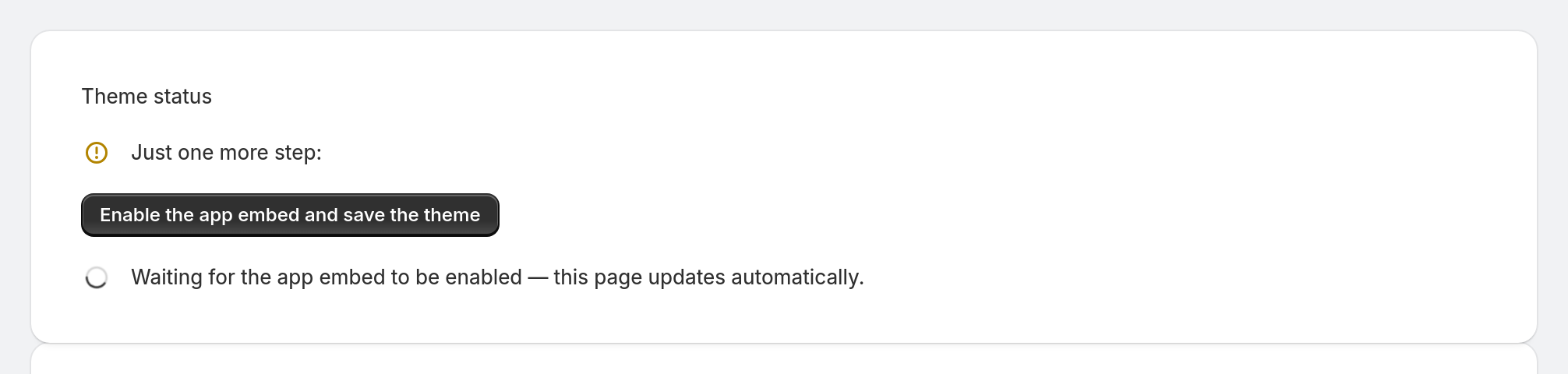
From the app, open Theme status (there is a link in the app's top navigation, and the dashboard shows a Theme Embed Status card as well). If the embed is still off, the page shows Just one more step: with a button to enable it — and a spinner reading Waiting for the app embed to be enabled — this page updates automatically. That auto-updating status is how you will know, in a moment, that it worked.
![Open Theme status — s-button[target="_blank"], s-spinner highlighted](/docs-assets/img/enable-share-images-theme-embed/01-theme-status-page.png?791b6648)
2 Enable the app embed and save the theme
Click Enable the app embed and save the theme. It opens your Shopify theme editor in a new tab, with the app's embed pre-selected — flip its toggle on, then press Save in the theme editor. That is the whole action: you are telling your live theme to include the app's share-image tags on every page.
3 Let the status confirm itself
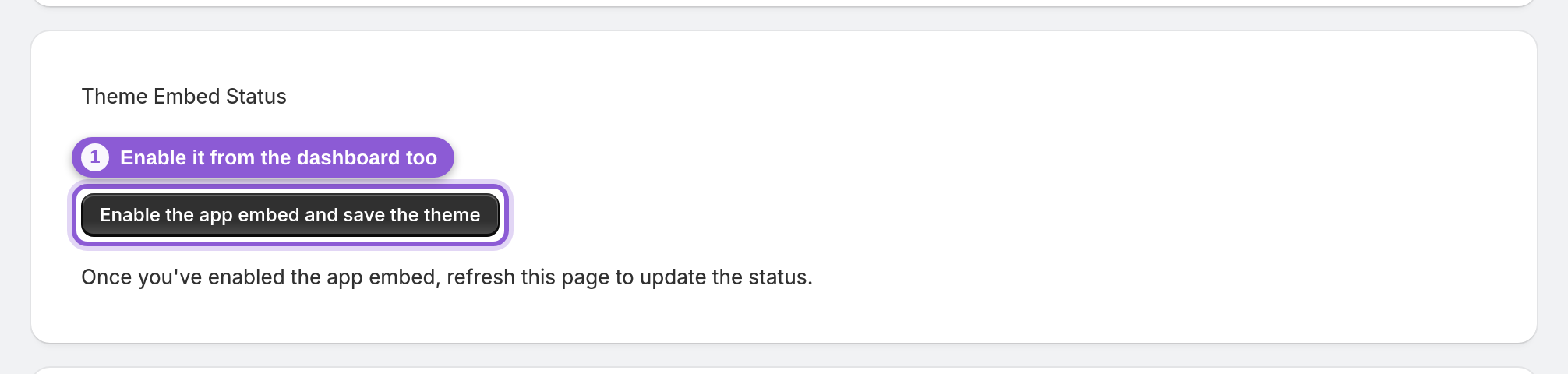
Come back to the app tab. The Theme status page polls in the background and refreshes on its own the moment Shopify reports the embed as enabled — you do not have to reload. Once it flips, it reads Your theme is ready to go! On the dashboard, the Theme Embed Status card clears its warning too. If it still says Not enabled, make sure you pressed Save in the theme editor, then use the refresh this page to update the status prompt.
4 Confirm the share image on a real link
Now check what actually gets shared. The most reliable way is the free Social Share Preview Checker (under Tools on our site): paste a product URL and it reads your page's live Open Graph tags and shows the preview each platform will render. Keep in mind platforms cache previews per URL — a link you shared before enabling the embed can keep showing the old card until the platform re-scrapes it, so test a link you have not shared yet to see the current state right away.
5 Keep it running
Once the embed is on, it keeps serving your share images. With Automation on, new products and collections get a share image automatically, and blog articles (and store pages, once you turn on share images for pages in Settings) are picked up by an hourly sync. Existing images are re-rendered on their own too when a product's or collection's photos change, or when text your design shows (such as the title or price) changes. Changing Settings doesn't re-render existing images, so use Regenerate or bulk regenerate on the dashboard after a design change. You only revisit Theme status if you switch to a brand-new theme — a fresh theme starts with the embed off, so you would enable it again there.
Frequently asked questions
Why is my Shopify social share image not showing?
The most common cause is that the theme app embed is not enabled yet. The app serves its og:image through that embed, so until you turn it on and save your theme, your storefront pages do not carry the app's share-image tags. Open Theme status in the app and click Enable the app embed and save the theme.
Where do I enable the app embed?
Open Theme status in the app and click Enable the app embed and save the theme. It opens your Shopify theme editor with the embed pre-selected — switch it on and press Save. The app's Theme status page then updates automatically to confirm it is live.
I enabled it but the preview still shows the old image — why?
Social platforms cache link previews per URL. A link you shared before the change keeps showing the cached card until the platform re-fetches the page. Share a fresh link, or re-scrape the URL with the platform's own debugger, to see the current image immediately.
How do I know the app embed is actually on?
The Theme status page updates itself and shows Your theme is ready to go! when the embed is enabled, and the dashboard's Theme Embed Status card clears its Not enabled warning. If it still shows a warning, confirm you pressed Save in the theme editor.
Do I need to enable this again after changing my theme?
Yes. A theme app embed is stored per theme, so a brand-new theme starts with it off. If you switch themes, open Theme status again and enable the embed on the new theme.
Does turning on the embed slow down my store?
The embed adds the share-image meta tags to your pages' HTML head; it does not inject storefront tracking scripts. The share images themselves are generated on our side, not in the shopper's browser.
How do I check the share image is correct after enabling it?
Use the free Social Share Preview Checker: paste any store URL and it fetches your live Open Graph tags and renders the preview for Facebook, X/Twitter, WhatsApp and more, flagging issues like a missing og:image before you share the link widely.